
Warm-Up
How Warm-Up Works and Why it's Important
Email warm-up is the safest way to build a sender reputation so your real campaigns land in the inbox (not spam). Reachingly automates this with human-like interactions across a controlled network of inboxes, gradually increasing volume while protecting your domain and IP reputation.
What "Warm-Up" Actually Does
When you enable warm-up on a mailbox, Reachingly runs a background workflow that:
- Sends small, randomized messages from your mailbox to a distributed pool of real inboxes.
- Opens those emails from the recipient side and moves them out of spam if they land there.
- Replies with short, natural messages to create legitimate conversation threads.
- Varies timing, subject lines, and content to avoid detectable patterns.
- Gradually ramps daily volume so providers can trust your sending behavior.
- Monitors bounces, spam flags, and engagement, then adapts pacing automatically.
These actions generate authentic positive signals for Gmail, Microsoft 365, and other ESPs—teaching them that your mailbox sends wanted, safe mail.
Why Warm-Up Is Critical
- Builds Sender Reputation
ESPs score domains and mailboxes. Warm-up raises that score before you send cold outreach. - Improves Placement
Healthy reputation = higher inbox rate and fewer promotions/spam placements. - Protects New Domains
Fresh or parked domains are risky; warm-up stabilizes them before scale. - Reduces Burnout
Accounts with gradual, conversational activity are far less likely to be throttled, blocked, or disabled. - Stabilizes Infrastructure
SMTP/IMAP paths also "learn" normal traffic, reducing auth and throttling hiccups when you launch campaigns.
Warm-up doesn't guarantee inboxing, but it dramatically improves odds and protects your assets when combined with good sending practices (SPF/DKIM/DMARC, clean lists, relevant content).
How Reachingly's Warm-Up Is Different
- Adaptive Ramp-Up: Pace adjusts based on your domain age, bounce rate, and spam signals.
- Human-like Variability: Randomized times, threads, and reply depths—no robotic patterns.
- Deliverability Guardrails: Auto-slow or pause if we detect risk (bounces/spam spikes).
- Per-Mailbox Controls: Daily cap, reply ratio, and scheduling window are tunable.
- Clear Health Scoring: See a mailbox's warm-up score, spam rescues, opens, replies, and recommended next steps.
How to Enable Warm-Up in Reachingly
To enable the warmup, you can follow the steps below:
- Go to your Email Connect tab.
- Click the Actions tab of your email.
- Click the Settings button.
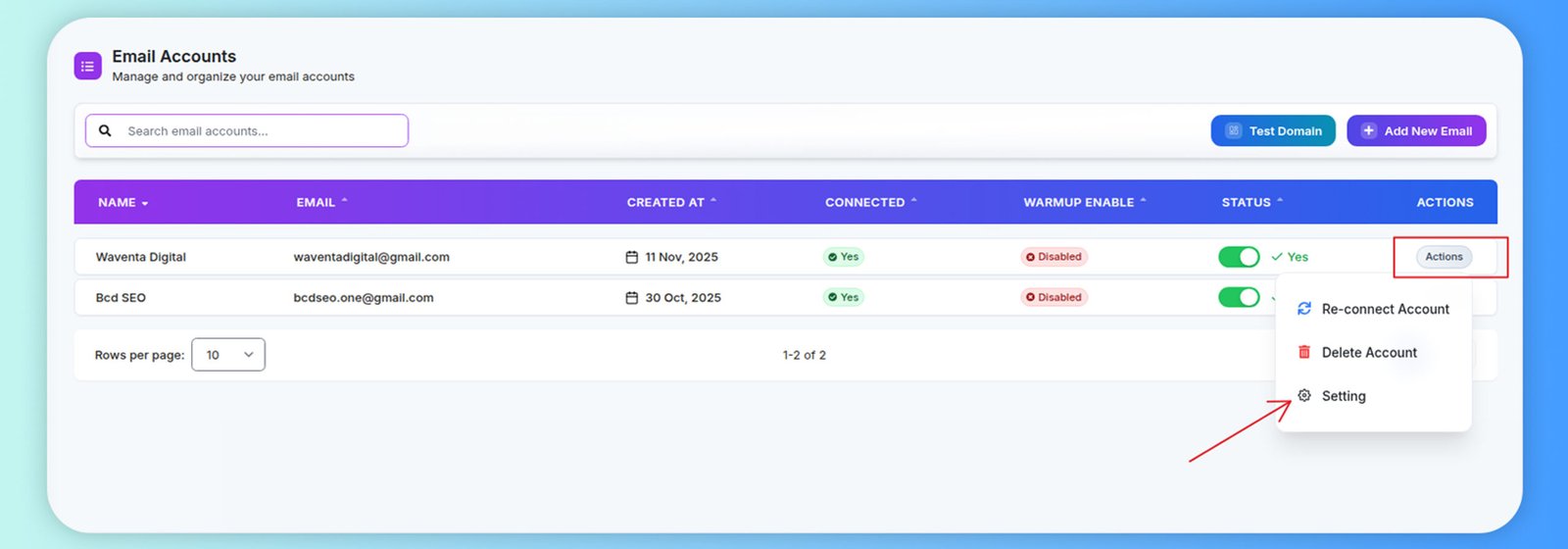
Warmup analytics
You can check the warmup analytics to confirm whether the account has started sending and receiving warmup emails. Here are the steps:
- Go to your Email Account tab.
- Click on the email account
- Check the warmup analytics in the chart and when joined
- Warm-Up play pause button.
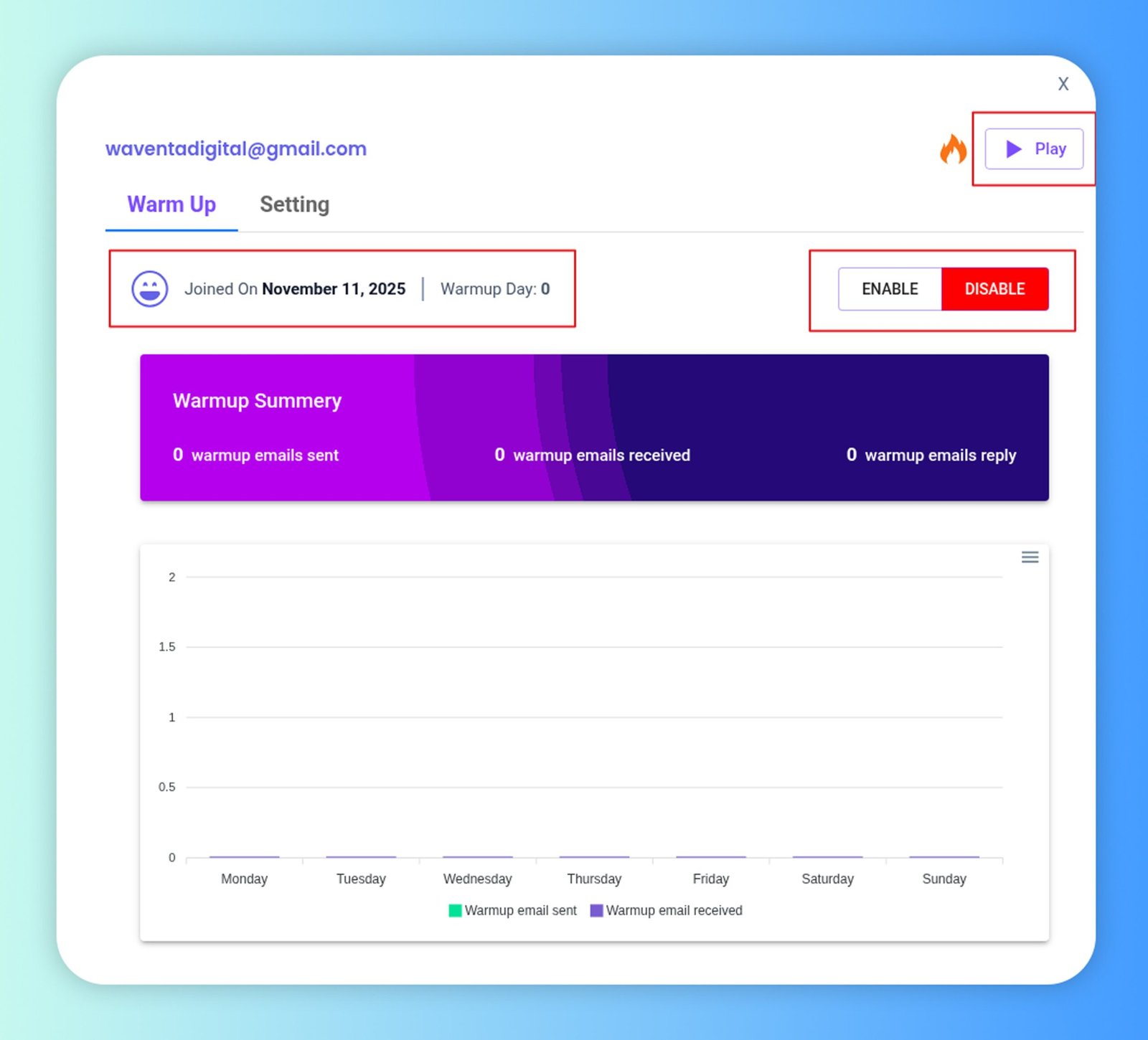
Warm-up setting
You can easily check or change the warmup settings for your accounts by following the steps below:
-
Go to the Email Connect tab
and click on the email account you want to edit.
-
Select Settings
in the pop-up window.
- Right tab to Warmup settings.
It's recommended to keep the suggested warmup settings.
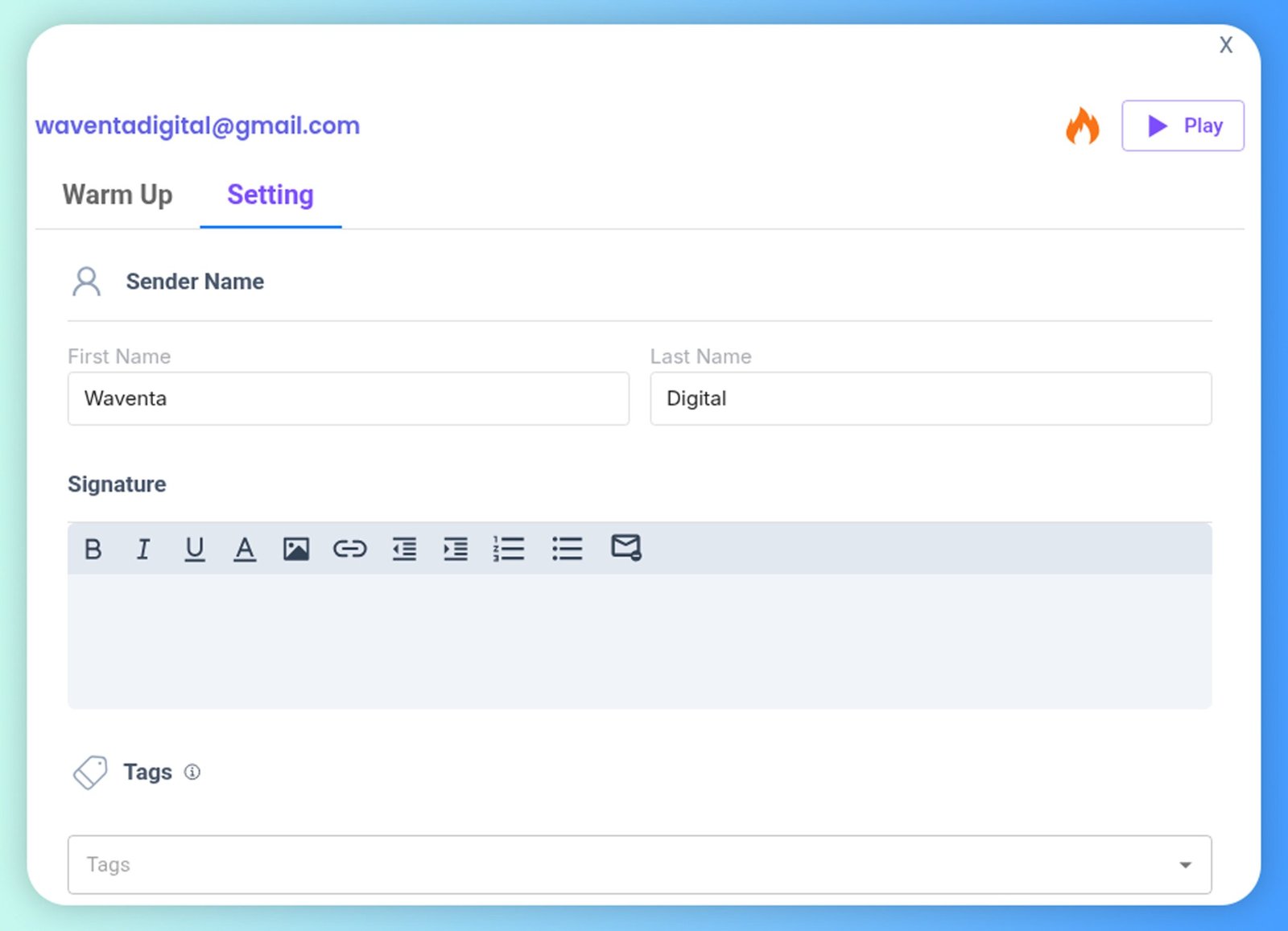
Use this panel to set the identity and behavior used by Reachingly's warm-up engine for the selected mailbox (shown at the top, e.g., waventadigital@gmail.com). These values are applied to the messages our network exchanges during warm-up and help ESPs learn your normal sending identity.
Header & Controls
- Mailbox label – The email address you're configuring.
- Flame icon – Indicates this mailbox has warm-up capabilities.
- Play / Pause – Starts or pauses warm-up for this mailbox without leaving the dialog. When running, Reachingly schedules messages within your configured send window and daily caps.
Sender Name
Define how your name appears in the From line of warm-up emails.
- First Name – e.g., Waventa
- Last Name – e.g., Digital
What it affects: The display name (Waventa Digital
Signature
A rich-text editor to append a professional signature to warm-up threads.
Supported: bold/italic/underline, links, images/logo, lists, alignment.
What it affects: Adds realistic footer content and links, improving the "naturalness" of conversations during warm-up.
Recommendations:
- Include full name, title, company, website, and a plain-text phone number.
- Keep images lightweight; prefer a small logo hosted on HTTPS.
- Avoid link shorteners and promotional copy while warming up.
Warmup filters - Google and Microsoft
Use Warmup Filters to tailor Reachingly's warm-up traffic for the mailbox's ecosystem. Different providers score reputation differently, so shaping warm-up to Google (Gmail/Workspace) or Microsoft (Outlook/Office 365) helps you build trust where you actually send.
What the Filters Do
When you select a provider filter for a mailbox, Reachingly will:
- Prioritize recipient inboxes from that ecosystem in the warm-up network (Google or Microsoft).
- Apply provider-specific pacing & behaviors (reply ratio, thread depth, timing).
- Track placement and rescues with provider-aware signals (e.g., Gmail spam vs. Promotions; Microsoft Junk/Focused).
Best Practices (Both Providers)
- Authenticate domain: SPF, DKIM, DMARC aligned with your From domain.
- Keep identity consistent: Same display name & signature as production sends.
- Maintain a light ongoing warm-up (5–15/day) even after ramping real campaigns.
- Scale gradually: Increase production volume by ~10–20% every few days.
- Use clean lists: High bounces erase warm-up gains.